Microsoft is consolidating Microsoft 365 Backup management for SharePoint and OneDrive directly into the SharePoint Admin Center, removing the need for admins to switch back and forth with the Microsoft 365 Admin Center. This change is primarily an admin experience update, aimed at aligning backup management with where SharePoint administrators already work day-to-day.
The rollout began in early May 2026 and is expected to be completed by mid-May 2026 for both Worldwide and GCC tenants. Existing Microsoft 365 Backup settings and policies are carried forward, and there is no change to how data is processed, stored, or protected behind the scenes. Compliance posture and reporting capabilities also remain the same, with backup oversight simply accessible through an additional centralized admin surface.
No immediate action is required, but SharePoint admins should familiarize themselves with the new Microsoft 365 Backup section in the SharePoint Admin Center once it appears. It is also a good time to update internal documentation or runbooks and let helpdesk or operations teams know where backup configuration and management now lives.
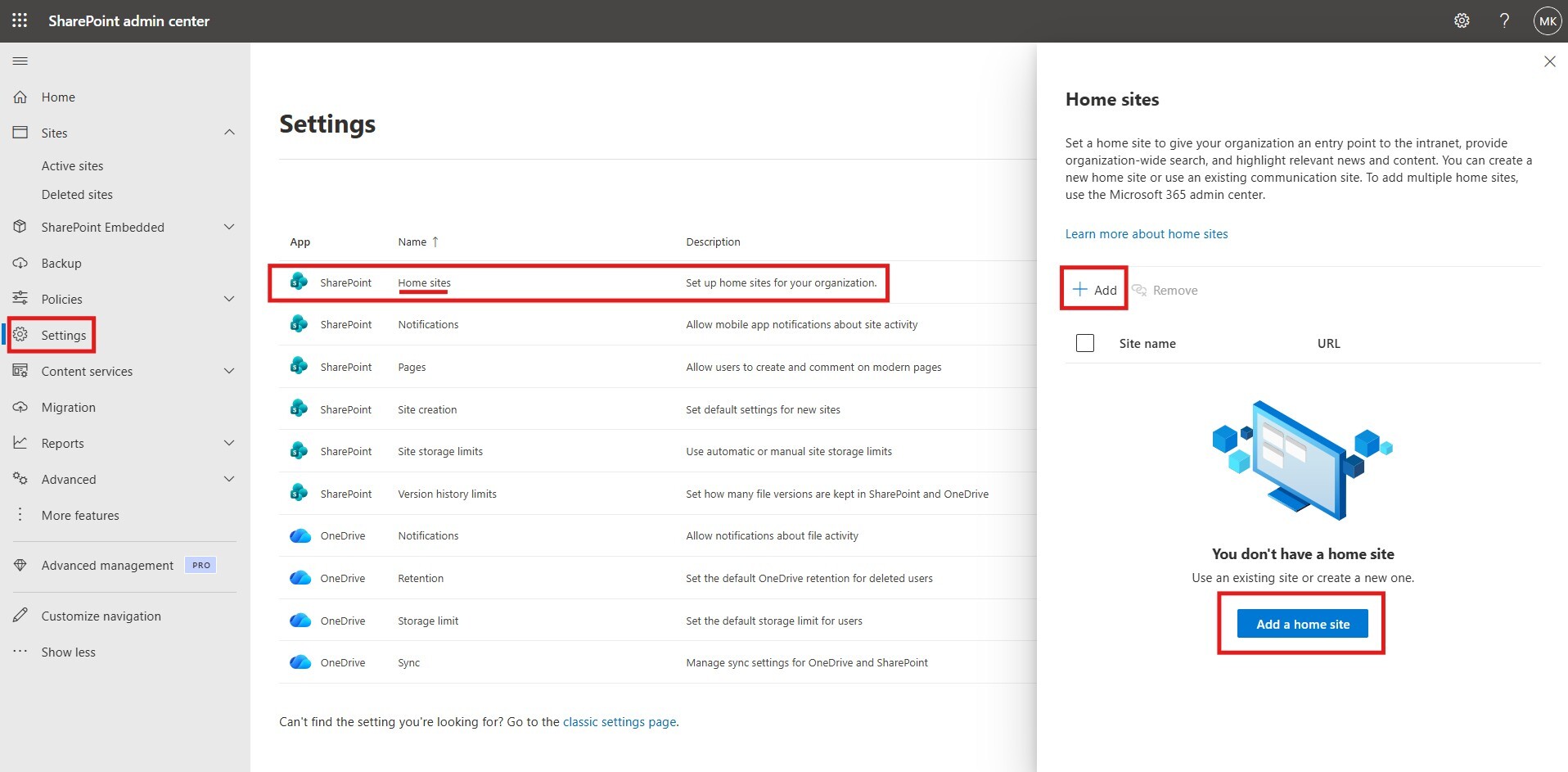
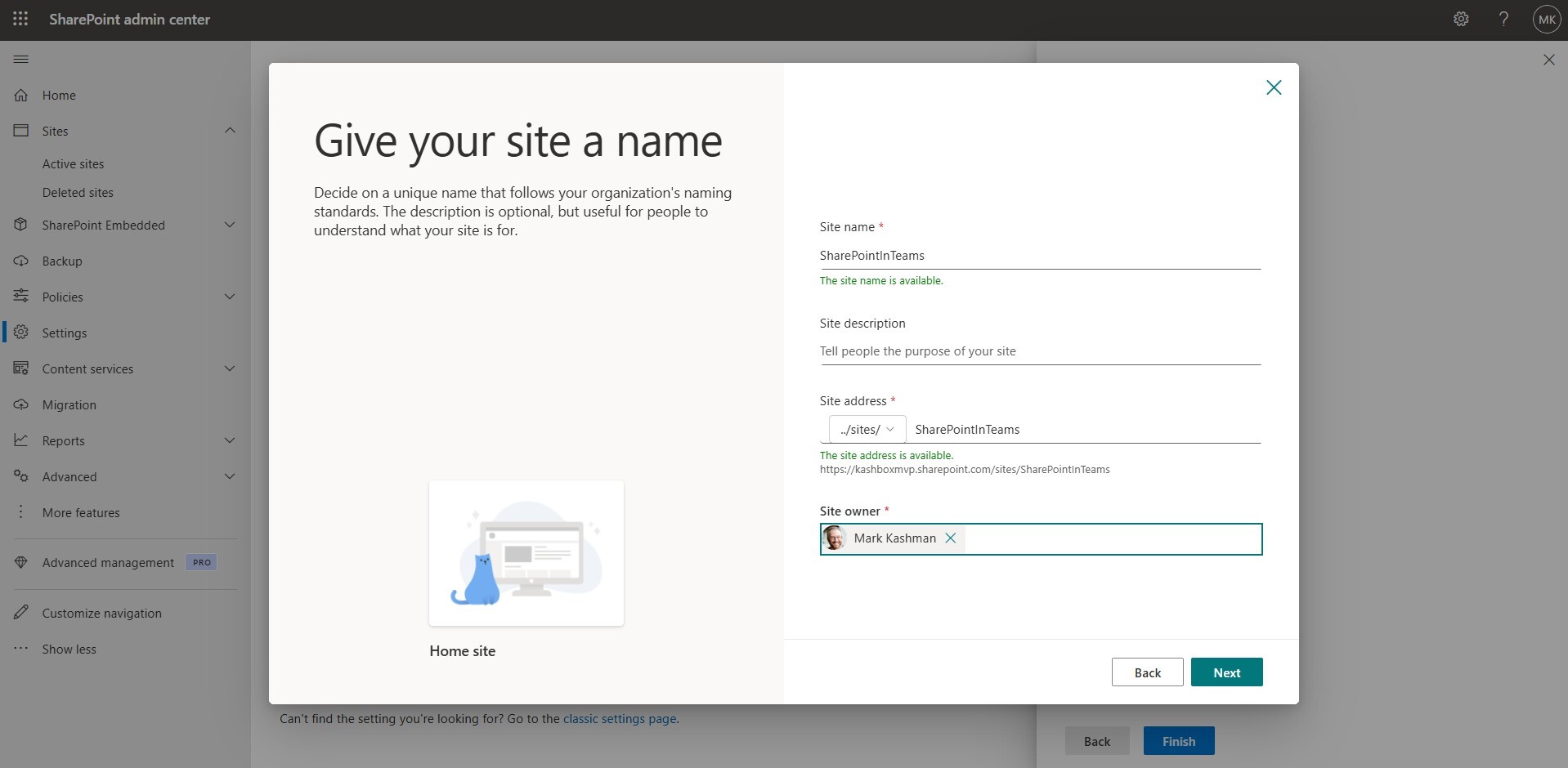
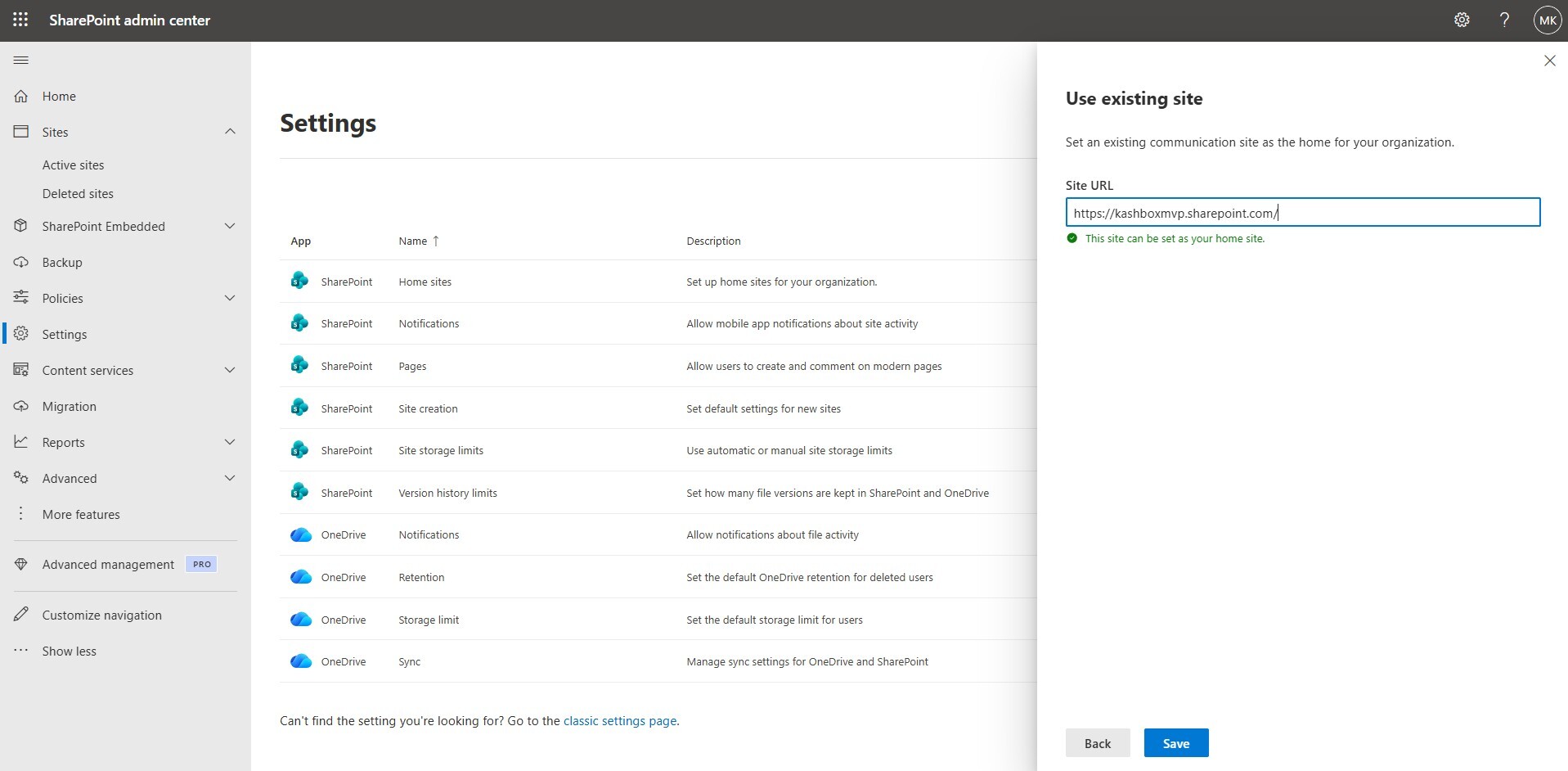
Microsoft is updating the SharePoint home site experience and renaming the Viva Connections app in Microsoft Teams to the SharePoint app in Teams. The goal is to simplify setup, reduce confusion between branding and platform capabilities, and give organizations more flexibility in how their intranet home site is delivered inside Teams. This update is tied to Roadmap ID 557983 and rolls out to Targeted Release in early May 2026, with general availability expected by late June 2026.
What’s changing is largely structural rather than disruptive. Existing Viva Connections deployments will retain their current app name, logo, and user experience in Teams. The primary change is the standardization of the default experience going forward, where the Teams app is explicitly aligned with SharePoint home sites. Microsoft is also introducing several enhancements that apply only to designated home sites, including improvements intended to better support intranet landing scenarios and organization-wide communication.
For SharePoint administrators, this update reinforces the importance of a clearly defined home site strategy. Organizations that already use Viva Connections do not need to take immediate action, but teams planning new intranet deployments in Teams should expect to configure and manage them through the SharePoint app model instead. This change mainly affects SharePoint admins and intranet owners, with minimal impact on end users beyond updated naming and incremental experience improvements.
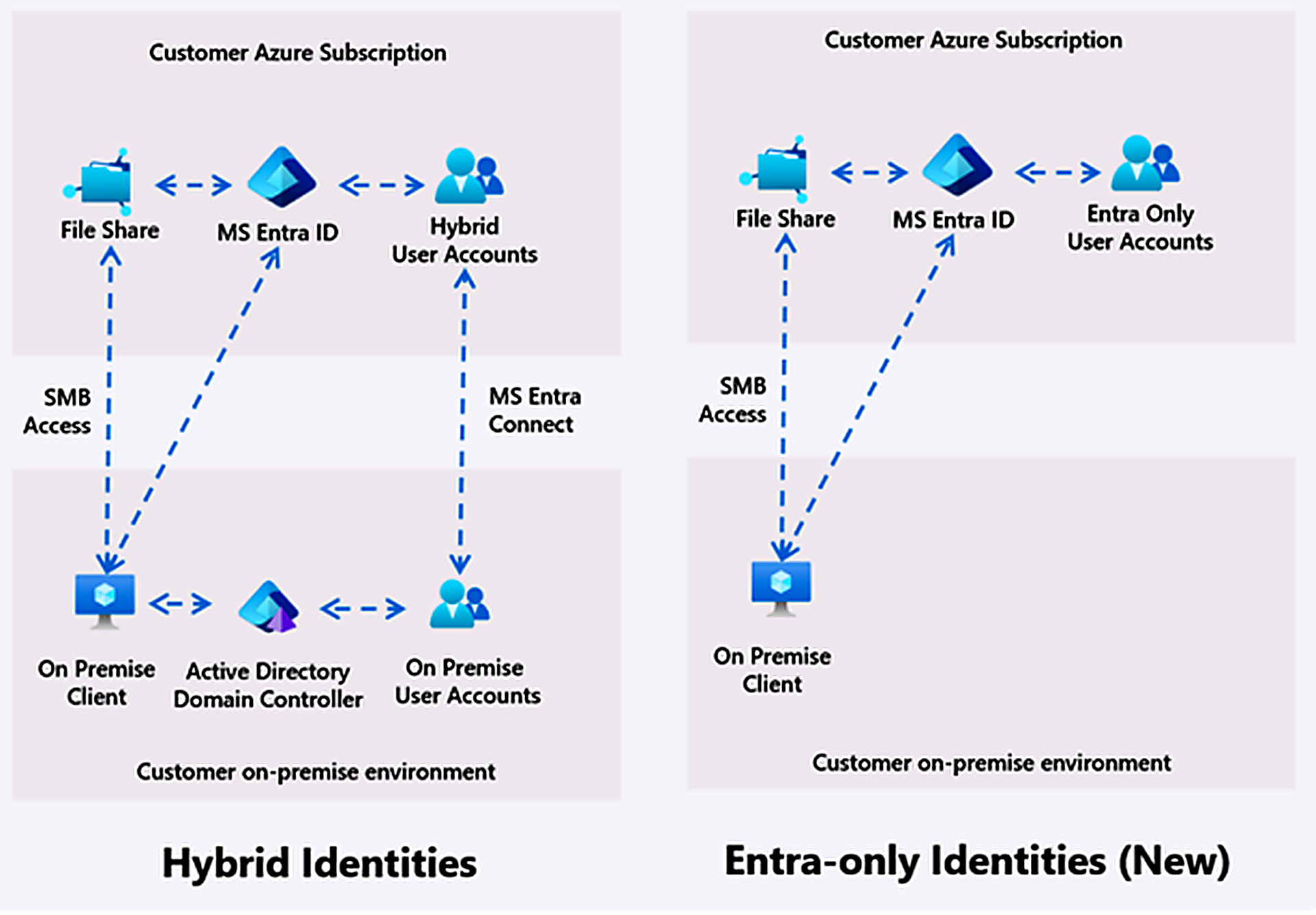
Microsoft has announced the general availability of Microsoft Entra–only identities for Azure Files SMB, enabling organizations to authenticate users directly with Entra ID (Azure AD) without relying on on‑premises Active Directory or hybrid sync, which significantly simplifies architecture and reduces operational overhead. This capability modernizes file access by using Entra as the Kerberos identity provider, allowing secure, cloud-native, identity-based access to file shares from anywhere without VPNs or domain-joined infrastructure, while maintaining SMB compatibility and NTFS permissions. It supports key scenarios like Azure Virtual Desktop (including FSLogix profiles), remote and cross-organization access via B2B identities, and integration with managed identities to eliminate credentials, all aligning with Zero Trust principles and improving security posture. Overall, Entra-only identities remove a major barrier to cloud migration, enabling fully cloud-native storage, compute, and identity integration with simplified management, enhanced security, and better support for modern, distributed workforces.
Microsoft is announcing the ability to create workflows using natural language with the Agentic Workflow Builder in Microsoft Copilot Studio. This feature will reach general availability on May 20, 2026.
How does this affect me?
The Agentic Workflow Builder introduces a Copilot-powered authoring experience that enables makers to create workflows in Copilot Studio using natural language. Instead of manually assembling workflow components straight in the canvas, makers can describe the automation they want to build, and Copilot Studio will interpret their intent to generate and configure the corresponding steps. This feature streamlines the workflow creation process by:
- Translating user intent into structured workflow logic
- Automatically configuring actions, triggers, and other components
- Reducing the need for manual setup and technical configuration
- Accelerating time from concept to implementation
Previously, files that were locally available through the OneDrive Sync Client that were subsequently deleted from the cloud (i.e. via the browser or mobile app) appeared in the local Recycling Bin (or macOS Trash). As of early May 2026, Microsoft will be rolling out a General Availability change where all deleted files from the cloud will only appear in the relative OneDrive or SharePoint web recycle bin, recoverable for 93 days. This will improve sync performance for users with large document libraries, and restoring files will be more reliable. Files that are locally available, where the user deletes it from their desktop, will still appear in the Recycle Bin or Trash.
Microsoft is increasing the number of files OneDrive can sync on Windows from 300,000 to up to 1 million per device, which will help people who work with very large file libraries. This change will roll out first as a preview starting in late April 2026, with a wider release coming later. Devices that don’t meet certain requirements will continue using the current 300,000-file limit, so nothing will break for them. Most users won’t notice any disruption, though syncing lots of read-only files or certain restricted accounts may not perform as well yet. If you want to try it early, you’ll need eligible devices and access to the preview program, but otherwise, no action is needed.
Here are the system requirements to sync up to 1,000,000 files through the OneDrive sync client:
-Latest OneDrive sync client with the latest OneDrive Insider program enabled. See how.
-Platform: Windows 11 or Windows Server 2022 with public preview for Windows.
-Memory: 16 GB RAM minimum (32 GB recommended).
-Storage: Solid-state drive (SSD) required.
-Processor: Intel i5 / AMD Ryzen 5 or later, Snapdragon X Plus.
It is also recommended to deploy the following sync app configuration: https://learn.microsoft.com/en-us/sharepoint/ideal-state-configuration.
Microsoft Teams is introducing an enhanced meeting recap sharing experience that gives organizers more control over who can access meeting recordings, transcripts, AI‑generated summaries, and notes. With this update, meeting content can be shared more easily with people who were not part of the original meeting, without requiring manual permission changes after the fact.
Meeting organizers will be able to grant access to the recording, transcript, AI summary, and notes at the time they copy or share a recap link. Organizers can explicitly specify which users should receive access when the link is shared. Meeting attendees who are not organizers will still be able to copy or share recap links, but recipients who were not in the meeting will be prompted to request access.
The new sharing experience is available directly from the Share menu on the recap page and from the recap thumbnail within the meeting chat. This feature is enabled by default and does not require any administrative configuration.
This update improves how meeting knowledge is distributed across teams, especially for asynchronous collaboration and scenarios where key stakeholders could not attend. As Teams recaps increasingly include AI‑generated summaries and notes through Copilot, this change helps ensure that valuable meeting insights can be securely shared beyond the original attendee list while still respecting Microsoft 365 permissions.
Rollout will begin in mid‑May 2026 for Targeted Release, with General Availability rolling out across Worldwide and GCC environments in early June 2026 and completing by late June. GCC High tenants will begin receiving the feature in early July 2026. No admin action is required, though organizations may want to update internal guidance to reflect the new sharing behavior.
Microsoft Purview Data Security Investigations (DSI) is expanding its AI-powered investigation capabilities by adding optical character recognition (OCR). This enhancement enables DSI to extract and analyze text from images, helping organizations identify sensitive information embedded in visual content. This improves the accuracy and depth of data security investigations. General Availability will begin rolling out in mid-July 2026 and is expected to be completed by late July 2026.
What to expect:
- OCR will be enabled by default in Data Security Investigations.
- DSI will automatically extract text from image-based content (images, screenshots, embedded visuals in files).
- Extracted text will be incorporated into investigation datasets to improve search, analysis, and risk detection.
- Existing investigation workflows will require no changes.
- Existing Purview policies and controls (such as sensitivity labels and DLP) continue to be respected.
Microsoft is introducing file-level archiving for Microsoft 365 Archive. This capability allows organizations to move individual SharePoint files or folders into low-cost archival storage while keeping them visible in their original location. This helps reduce storage costs and optimize content lifecycle management without losing metadata, permissions, or compliance coverage.
What will happen:
-
File-level archiving is not enabled by default. Admins must enable Microsoft 365 Archive and then enable file-level archiving.
-
Users with Edit permissions can archive individual files or entire folders in SharePoint document libraries.
-
Archived files:
-
Remain in their original location with a visual indicator
-
Retain metadata, permissions, and compliance coverage
-
Cannot be opened until reactivated
-
-
Reactivation behavior:
-
Instant reactivation within 7 days of archiving
-
After 7 days, reactivation may take up to 24 hours
-
-
Archived files:
-
Are excluded from Copilot responses
-
Are hidden from default search results
-
-
Storage and billing:
-
Archived content is billed using Pay-As-You-Go pricing
-
Storage costs are approximately 75% lower than active storage
-
Charges apply to storage exceeding the SharePoint tenant quota
-
-
Admin capabilities:
-
Enable or disable file-level archiving at tenant or site level
-
Control default behavior for new sites
-
Monitor usage via PowerShell (FileArchiveStorage metrics)
-
-
All archive and reactivation actions are logged in the Microsoft 365 audit log.
What you can do to prepare:
-
Enable Microsoft 365 Archive in the Microsoft 365 admin center (if not already enabled).
-
Configure file-level archiving
-
Inform site owners and end users about the new file-level archiving features and their impact